Zotero

Zotero: A Free Citation and Research Management Tool


The library and learning commons staff recommend using Zotero! Zotero is a free citation and research management tool available on Windows, Mac, Chromebook OS, and more as a desktop application that syncs up with a browser extension in your browser of choice to keep track of your research and help construct your bibliography and citations. 

What can Zotero do?

  • Import citation information from websites, library catalogs, journals, and databases
  • Generate formatted bibliographies, footnotes, and endnotes in many different styles, including APA and MLA
  • Annotate notes and tags that can be keyword searched
  • Sync the citations and information you save online across multiple devices via with Zotero.org
  • Share your saved work with classmates and colleagues

Go to the download page and download the desktop version for your operating system, and the corresponding connector for your browser if necessary. On Mobile devices, you can go to the Apple App Store to download it on an Apple device, and on Android devices you can find it on the Google Play Store. If you’ve downloaded the desktop version, run or open the file and follow the procedure to install Zotero like you would any other program. If you still need help figuring out how to set up and use Zotero, please reach out to library staff at libstaff@carroll.edu

Zotero FAQs

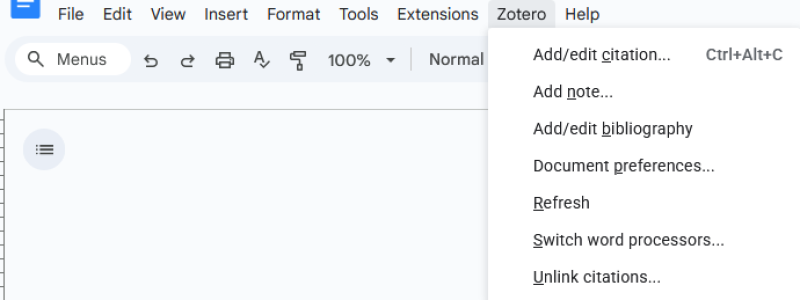
  • In Microsoft Word or Google Docs, look for the Zotero button up at the top of the word processor menu, usually in the top left corner. 
    • Zotero might not appear in Microsoft Word for the Web. Please try installing the Microsoft Word software on your computer first, or switch to Google Docs. 
  • Select “Document preferences.” 
The Zotero Dropdown Menu as it appears in Google Docs
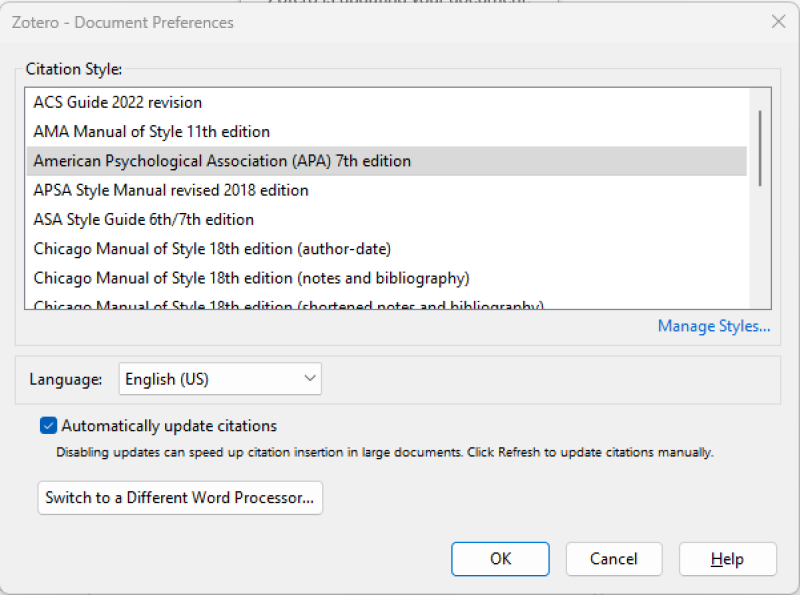
  • This will open the document preferences window (it may be hidden behind your browser or other windows when it appears).
  • Select which citation style you want. 
    • If the style you want is not on the list, click “Manage Styles” which will open the Zotero Preferences window in Zotero. 
    • Clicking “Get additional styles” opens the Zotero Style Repository where you can search for the citation style you want. 
The Zotero Document Preferences Window where citation style can be selected
  • To set up syncing, open Zotero and go to your Zotero Settings (also sometimes called Zotero Preferences). Click the dropdown menu in the top left called “Edit” (on Mac it may be under "Zotero" next to the apple icon) and select Settings or Preferences depending on which version you have. 
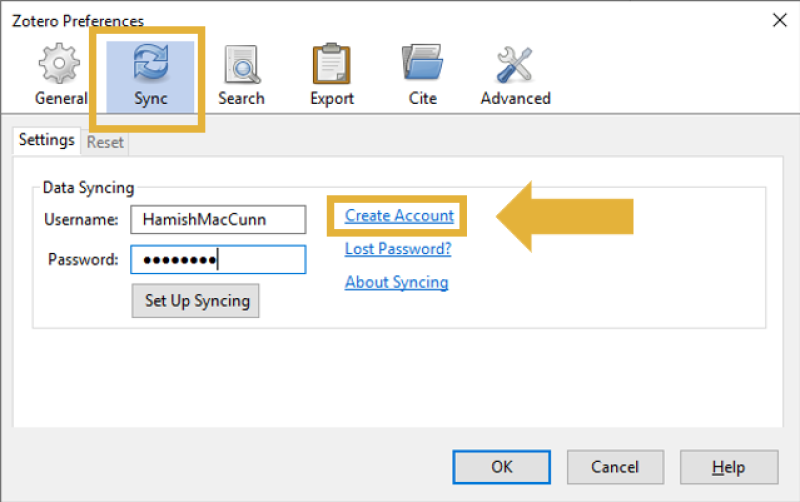
  • Select “Sync” in the Zotero Settings window and then you can select “Create Account” if you haven’t already created one. 
    • We recommend you use your Carroll College email address when creating your Zotero account, however, it should be the same email address as you are currently logged in with and using with your browser, especially if you use Google Chrome and Google Docs. Otherwise, Zotero may not work properly with these platforms. 
  • Once you’ve done this, return to Zotero, log in with your account and click “Set Up Syncing.” See below: 
The sync tab of the Zotero Preferences window where a Zotero account can be set up to allow syncing across devices
  • If the Zotero tab isn’t working in Microsoft Word or Google Docs, try whichever one you’re not currently using (both Word and Docs are available to you through Carroll via Okta). 
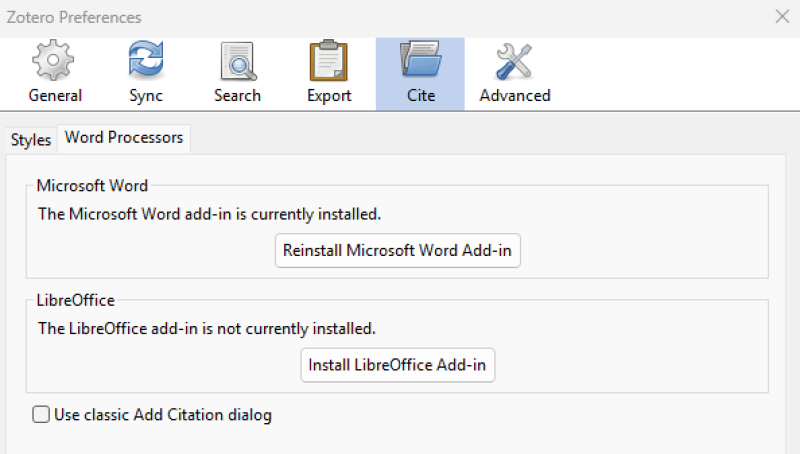
  • If it works in Google Docs but not with Microsoft Word, you should reinstall the Microsoft Word plugin in Zotero Preferences on the “Cite” tab under “Word Processors.” 
    • Zotero might not appear in Microsoft Word for the Web. Please try installing the Microsoft Word software on your computer first. 
The Zotero Preferences window's Cite tab, where you can find the option to reinstall the Microsoft Word Add-on
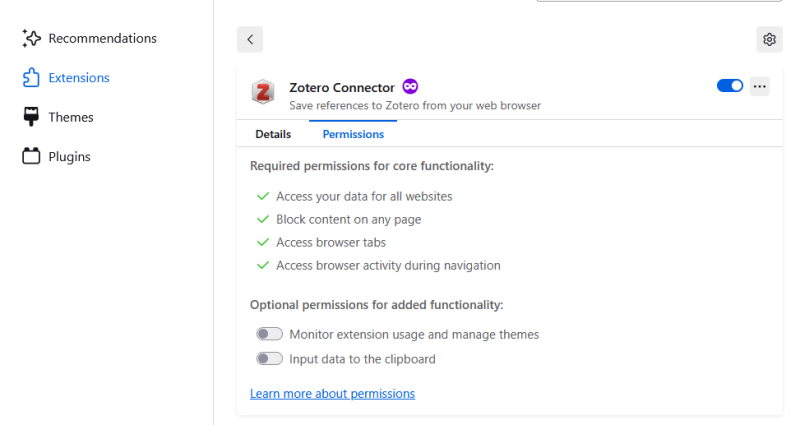
  • If it works in Word but not in Google Docs, check the Zotero Connector under the extensions section of your browser to make sure it's allowed the necessary permissions to function
  • If that doesn't work, remove and reinstall the Zotero Connector browser extension for the browser you were using Google Docs in. 
    • Different web browsers will work differently with the Zotero Connector, and some will work better than others. We recommend you avoid using the Safari web browser with Zotero. 
The Zotero Connector browser extension's options menu as it appears under the extensions section of the browser settings menu in Mozilla Firefox. Here is where you can access its permissions and reinstall it if necessary
  • If none of this works, you can try completely reinstalling Zotero, however if you don’t have a Zotero account with syncing set up, you will lose anything you’ve saved in Zotero up to that point.
  • If you still have trouble, please schedule a meeting with a librarian, by emailing libstaff@carroll.edu
  • If you’re unable to save a source with the Zotero Connector browser extension, check if the source type is displayed on the connector button (appearing as an icon of that type such as a book, article, etc.).
  • If the icon grayed out or appears as a generic icon labeled “embedded metadata” when you hover over it with your mouse, that's a sign that Zotero might not support or recognize the source. This could also be the case if the icon shows the wrong source type for the source, such as showing the website source type icon when it is actually a journal article. 
  • Try visiting different pages where the source is available even within the same database. For journal articles, it is usually best to go to the page that displays the most data about the article. 
  • If all else fails, try saving the source via an identifier like a DOI number or ISBN. 
  • You can quickly add items to your library if you already know their: 
    • ISBN 
    • DOI 
    • PubMed ID 
    • arXiv ID 
    • ADS Bibcode 
  • Click the Add Item by Identifier button () in the toolbar, type or paste in the identifier, and press Enter/Return. 
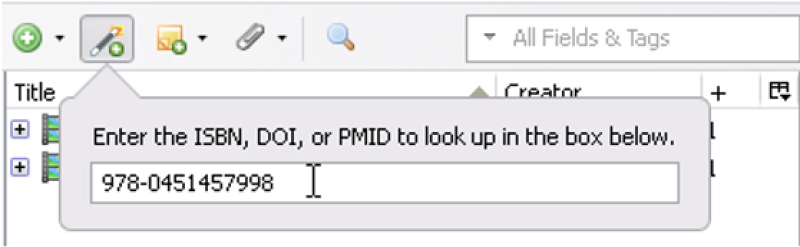
  • To add more than one item, separate identifiers by spaces, commas, or line breaks. 
The add item by identifier field in Zotero